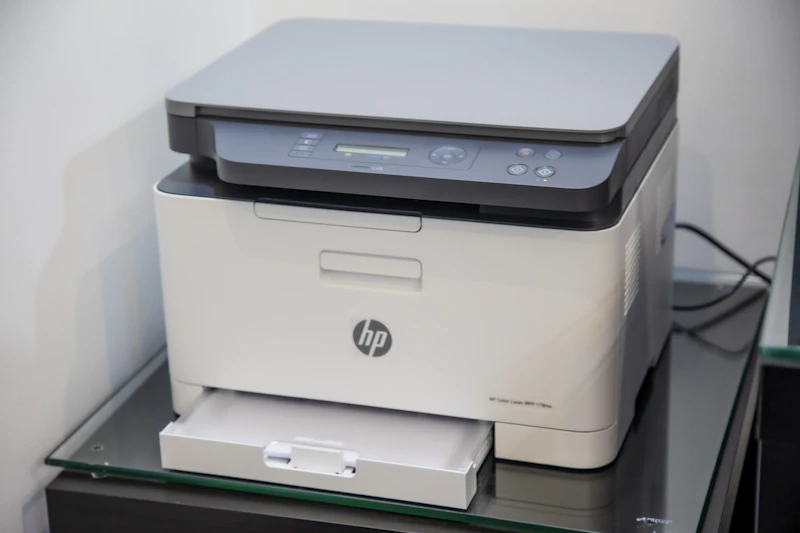
How to Set Up a Wireless Printer That Actually Works
Wireless printers are notorious for losing connection. Here's how to set one up correctly the first time and keep it connected permanently.
BestElectronicsReviewed.com is a participant in the Amazon Services LLC Associates Program. We may earn a commission from qualifying purchases made through links on this page, at no extra cost to you.
Wireless printers have a reputation for being unreliable, and honestly, they earned it. But most connection problems aren't the printer's fault — they're caused by incorrect setup, router configuration issues, or network mismatches. Here's how to set up a wireless printer that stays connected.
Choosing the Right Printer
Before we talk about setup, let's make sure you're not starting with a problematic printer.
For Home Use (Occasional Printing)
The HP DeskJet 4155e ($84) is our pick for home use. It's an all-in-one (print, scan, copy), supports Wi-Fi Direct, AirPrint, and comes with 6 months of HP Instant Ink (which means your ink is delivered automatically before you run out).
For Home Office (Frequent Printing)
The Brother HL-L2460DW ($129) is a laser printer that costs pennies per page and never clogs because it uses toner powder instead of liquid ink. If you don't need color, laser is always the better choice for frequent printing.
For Photo Printing
The Canon PIXMA TR8620a ($149) delivers excellent color quality on photo paper while handling everyday documents well.
The Setup Process That Actually Works
Step 1: Place the Printer Near Your Router (Temporarily)
For initial setup, put the printer within 10 feet of your router. This eliminates wireless issues during configuration. You can move it later.
Step 2: Use the Manufacturer's App
Every major printer brand has a setup app: HP Smart, Epson Connect, Brother Mobile Connect, Canon PRINT. Download it on your phone. These apps walk you through the Wi-Fi setup more reliably than the printer's tiny screen.
Step 3: Connect to the 2.4GHz Network
This is the step most people mess up. Most printers only support 2.4GHz Wi-Fi, not 5GHz. If your router broadcasts a single network name for both bands (which most mesh systems do), the printer might try to connect to 5GHz and fail silently.
Fix: Check your router settings. If you have separate 2.4GHz and 5GHz networks (like "HomeWifi" and "HomeWifi_5G"), connect the printer to the 2.4GHz network specifically.
If using mesh/combined networks: Most mesh systems handle this automatically by directing the printer to 2.4GHz. If your printer still won't connect, temporarily create a 2.4GHz-only guest network, connect the printer to it, then delete the guest network. The printer will find the 2.4GHz band of your main network on its own.
Step 4: Assign a Static IP Address
This is the secret to keeping your printer connected permanently. By default, your router assigns a dynamic IP address to the printer, which can change whenever the router reboots. When it changes, your computer loses track of the printer.
- Open your router's admin page (usually 192.168.1.1 or 192.168.0.1)
- Find the DHCP settings or connected devices list
- Locate your printer's MAC address
- Create a DHCP reservation (static IP) for that MAC address
- Assign it a high address like 192.168.1.200
Now your printer always gets the same IP address, and your computers can always find it.
Step 5: Add the Printer to Your Devices
Windows: Settings > Bluetooth & devices > Printers & scanners > Add device. Windows should find the printer automatically.
Mac: System Settings > Printers & Scanners > Add Printer. Select your printer from the list.
iOS: Your printer should appear automatically in the print dialog of any app (AirPrint).
Android: Most printers support Mopria or the manufacturer's print plugin.
Troubleshooting the Top 3 Problems
Problem 1: "Printer Offline"
This almost always means the printer's IP address changed. Check the static IP reservation from Step 4. If you didn't set one, do it now. Then remove the printer from your computer and re-add it.
Problem 2: Printer Connects, Then Drops
This is usually a 2.4GHz vs 5GHz band issue, or the printer is too far from the router/mesh node. Move the printer closer to a mesh node, or place a Wi-Fi extender ($29) near the printer's location.
Problem 3: Prints Are Blank or Streaky
Run the printer's cleaning cycle through the maintenance menu. For inkjet printers that sat unused for weeks, the nozzles may have dried out. Run 2-3 cleaning cycles. If that doesn't help, you may need new cartridges.
The Ink Cost Trap
Inkjet printer companies sell cheap printers and expensive ink. A $25 ink cartridge might only print 100 pages — that's 25 cents per page. There are two ways to avoid this:
HP Instant Ink: A subscription ($2.99-5.99/month) that covers all ink costs. You get a set number of pages per month and rollover unused pages. If you print regularly, this saves significant money.
Tank printers: The Epson EcoTank ET-2850 ($199) comes with enough ink to print 4,500 black pages and 7,500 color pages. Refill bottles cost $13 each. The upfront cost is higher, but per-page cost drops to about 1 cent.
Read our full printer comparison guide →
As an Amazon Associate, BestElectronicsReviewed earns from qualifying purchases. All products are independently selected by our editorial team.
Recommended Products
Top picks from our buying guides
Ubiquiti UniFi Switch Lite 16 PoE
#1 in Best Network Switches with VLANs 2026
Check PriceRelated Articles
Updated: How to Organize Your Desk Setup for Maximum Productivity (Spring 2026)
Updated: How to Organize Your Desk Setup for Maximum Productivity (Spring 2026) — expert analysis and tested recommendations from BestElectronicsReviewed.
TipsEssential Tech for Architects and Designers
Architecture demands serious computing power for CAD and rendering, precise displays for color accuracy, and collaborative tools that bridge the studio and job site.
TipsMust-Have Tech for Interior Designers
Modern interior design blends creativity with technology. From color-accurate displays to 3D rendering tools, here's the tech that gives designers a competitive edge.